
Home / Documentation / Signing in and permissions
Choose how users sign in and who gets administrator rights.
Settings → Web & login. On a domain-joined server choose Windows domain accounts; otherwise local Windows accounts. Microsoft 365 (Entra ID) sign-in can be added alongside either.
In the console: /settings/web

Web & login settings, sign-in section
Enter the administrator group(s) and user group(s). Administrators change settings and delete studies; users browse, export and send. Leave the user groups empty to allow any authenticated account.
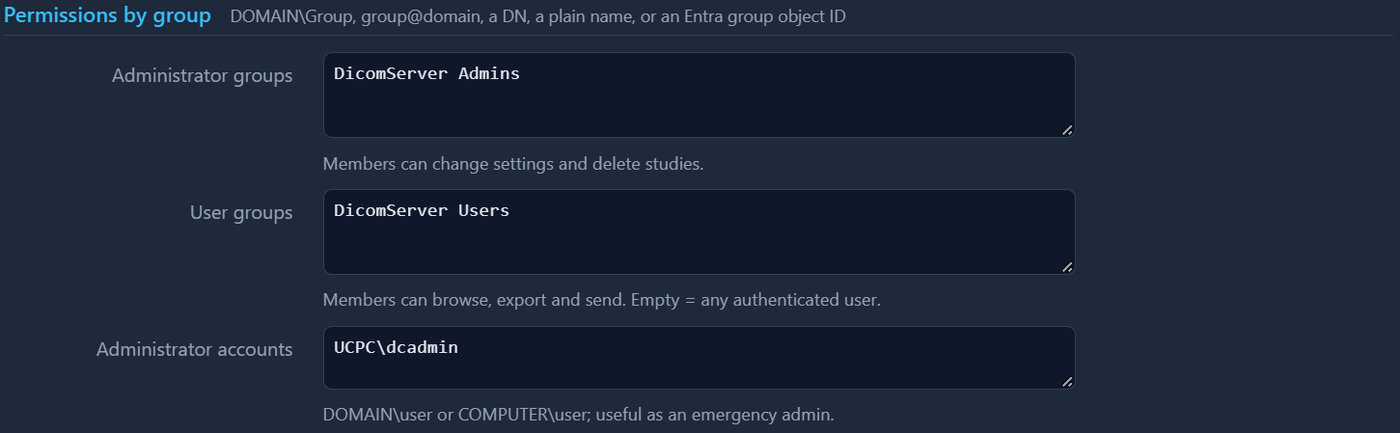
Group fields filled in
The 'Administrator accounts' list names individual accounts that are always administrators - useful before the groups exist. The installing account is added automatically.
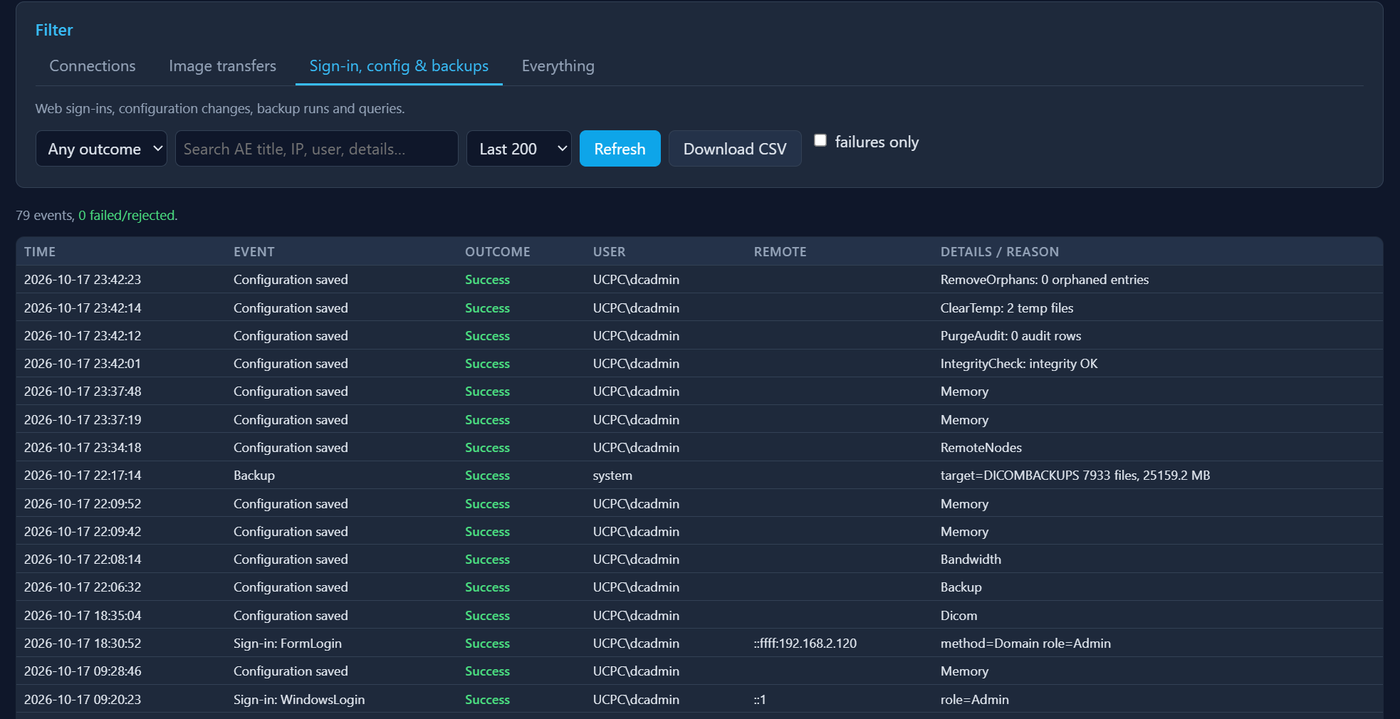
Sign out and sign back in as a test user; the sidebar footer shows the role that was resolved. The Audit Log → Sign-in tab records every attempt with the reason for failures. From the server, 'DicomServer.Setup test-login' does the same from the command line.
In the console: /audit