
Home / Documentation / Stopping certificate warnings
Trust the server's certificate on client PCs, or install one from your own CA.
On the login page or Help page download Trust-TekVaultPACS.cmd and double-click it. It asks for administrator rights, installs the server certificate under Trusted Root Certification Authorities for the whole PC, removes any stale copies with the same name and offers to restart the browser. Done - the next two steps are the manual alternative.
In the console: /trust-server.cmd
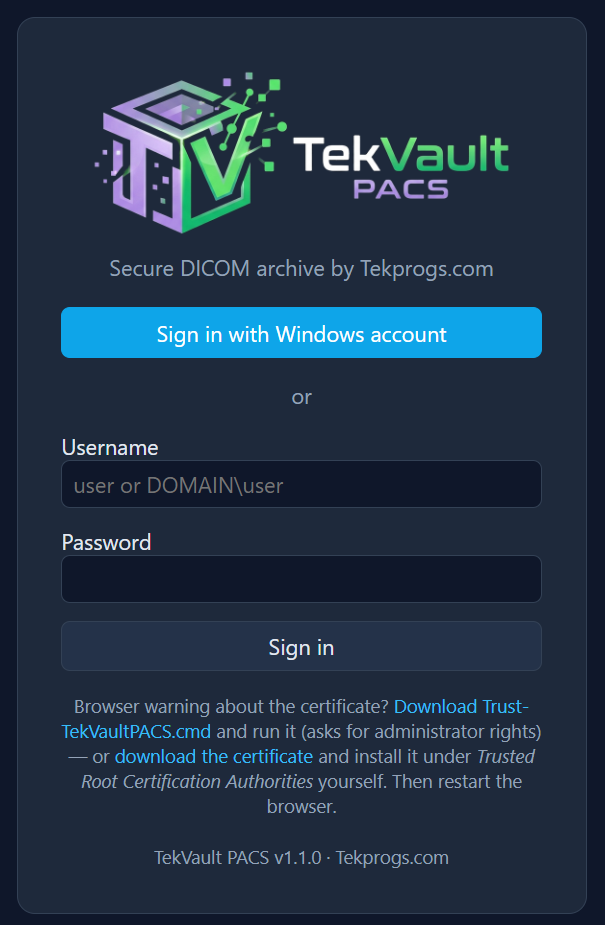
Login page: trust script and certificate links
Double-click server.cer → Install Certificate…. In the wizard choose Local Machine (so every user of the PC trusts it; Current User works for just yourself) and press Next.
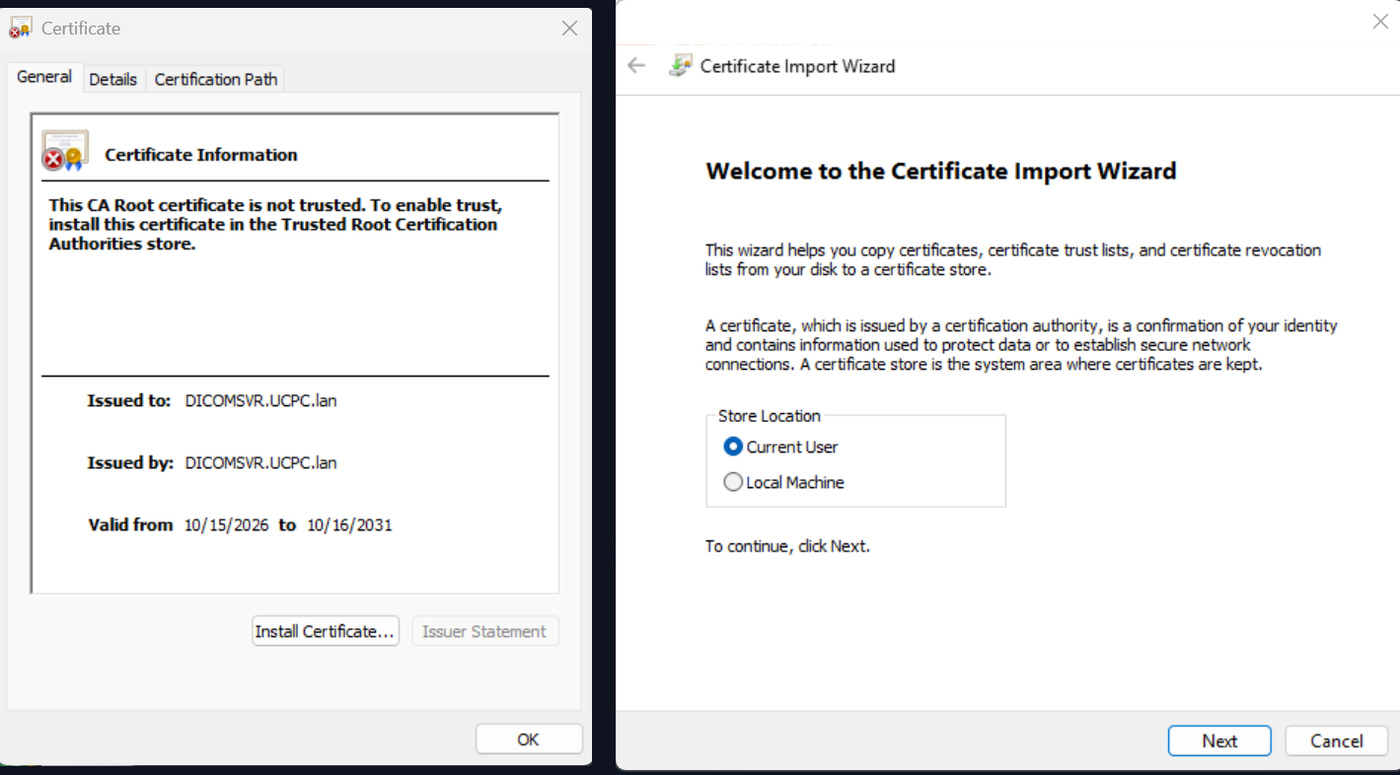
Windows Certificate dialog → Install Certificate… → Certificate Import Wizard
Choose 'Place all certificates in the following store' → Browse… → Trusted Root Certification Authorities → OK → Next → Finish, and confirm the security warning. Restart the browser; the warning is gone.
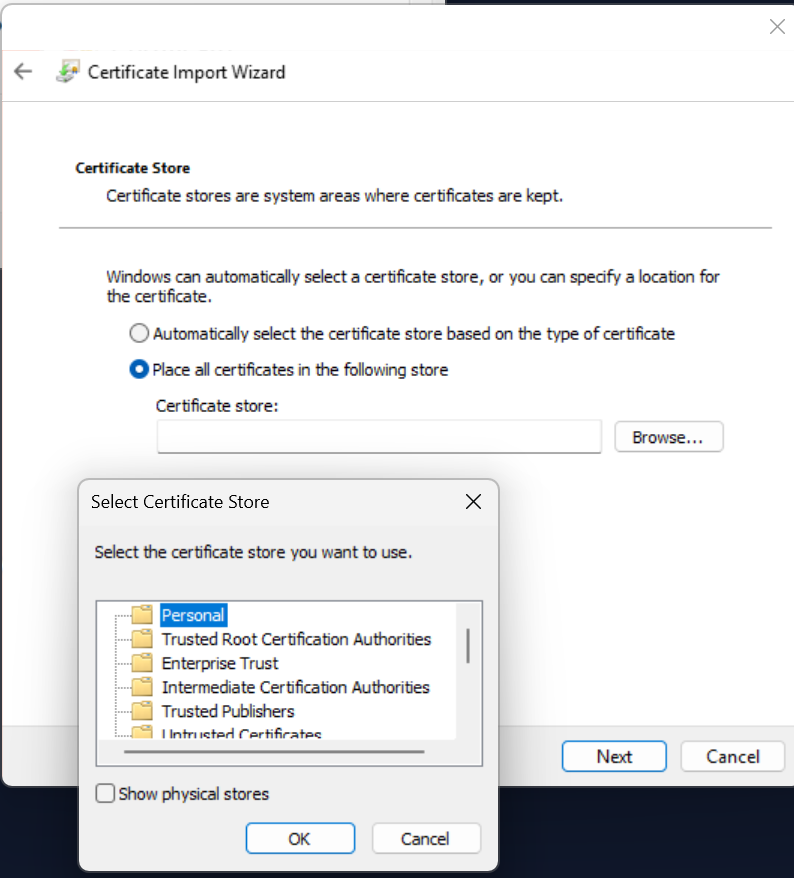
Certificate Import Wizard: selecting Trusted Root Certification Authorities
Computer Configuration → Policies → Windows Settings → Security Settings → Public Key Policies → Trusted Root Certification Authorities → Import.
Import a certificate for the server's DNS name into the Local Machine Personal store, then select it under Settings → DICOM & TLS (it is used for HTTPS too). The service account is granted access to its private key automatically when you save.
In the console: /settings/dicom
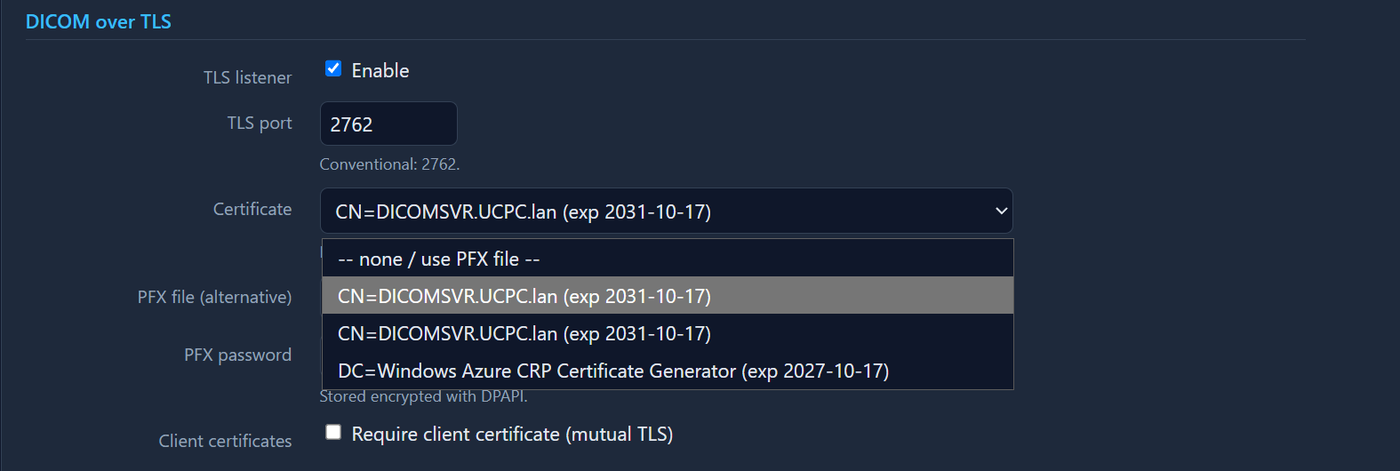
DICOM & TLS settings, certificate dropdown