
Home / Documentation / Sending studies to another node
Forward selected studies to a remote PACS or workstation with C-STORE.
Destinations are the remote nodes under Settings → Remote nodes (administrators). Use 'Test' on a node to confirm it answers C-ECHO.
In the console: /settings/nodes
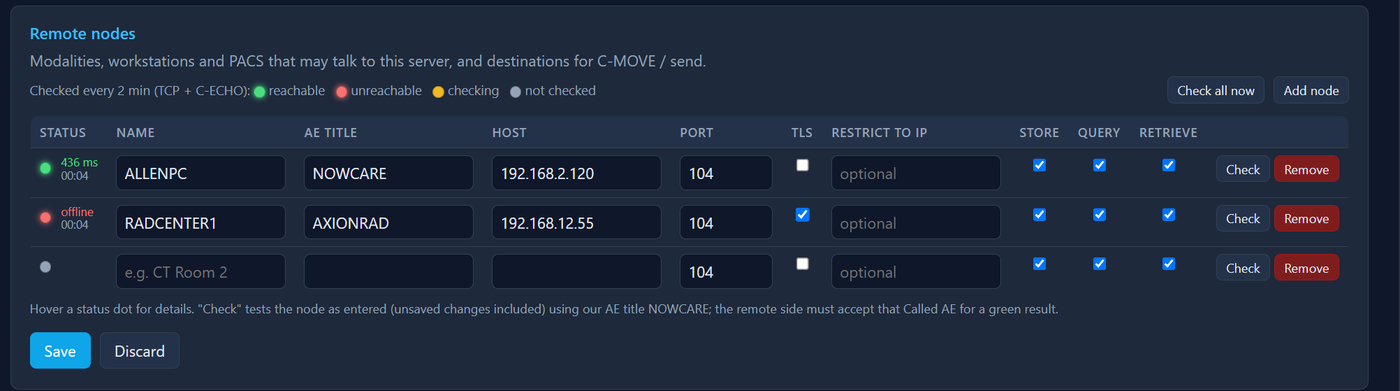
Remote nodes list with the Test button
In Studies, tick the studies to send, then press Send To Node in the selection bar.
In the console: /studies
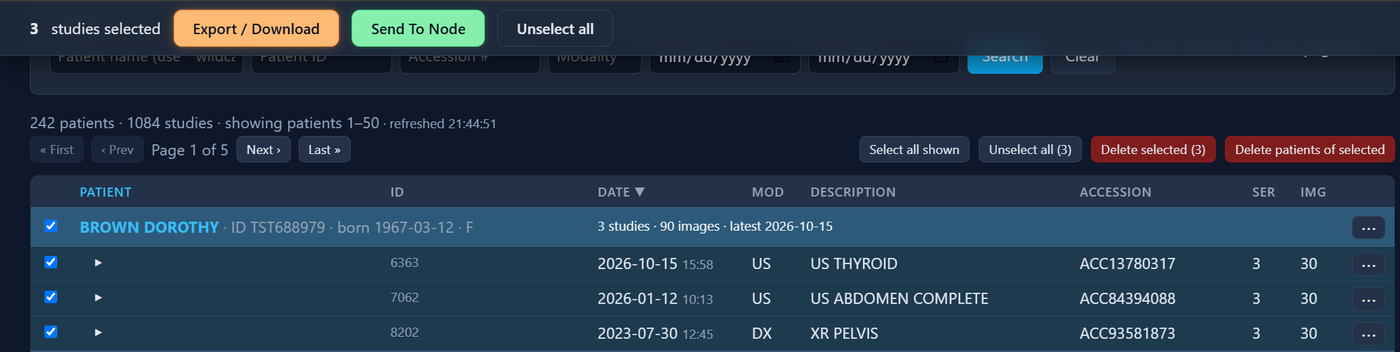
Studies with selection bar
Choose the destination from the list and press Send. The job runs in the background - you can leave the page.
In the console: /send
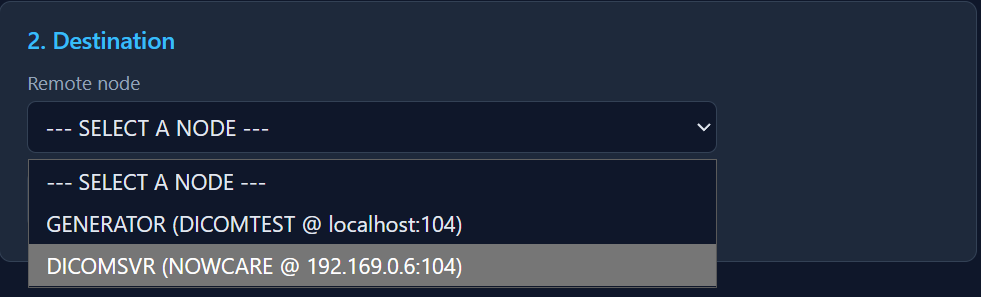
Send To Node page with destination chosen
Send Jobs shows images delivered, failed and retried. Busy receivers are handled automatically with back-off; a failed job retries every few minutes for up to 3 hours and Retry re-sends only the undelivered images.
In the console: /jobs
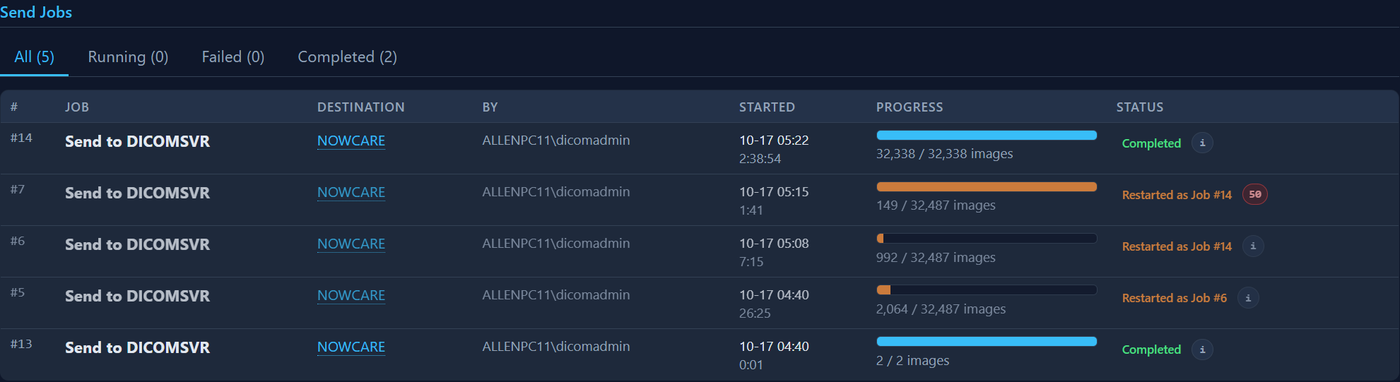
Send Jobs table with a running job
Settings → Bandwidth & sending → 'Sending to remote nodes' sets the per-image retries, the back-off delay, how many images are in flight on one association (1 is gentlest for a receiver that throttles) and when to give up on a destination that is down. Settings → Memory → Connections caps how many outgoing associations run at once.
In the console: /settings/bandwidth
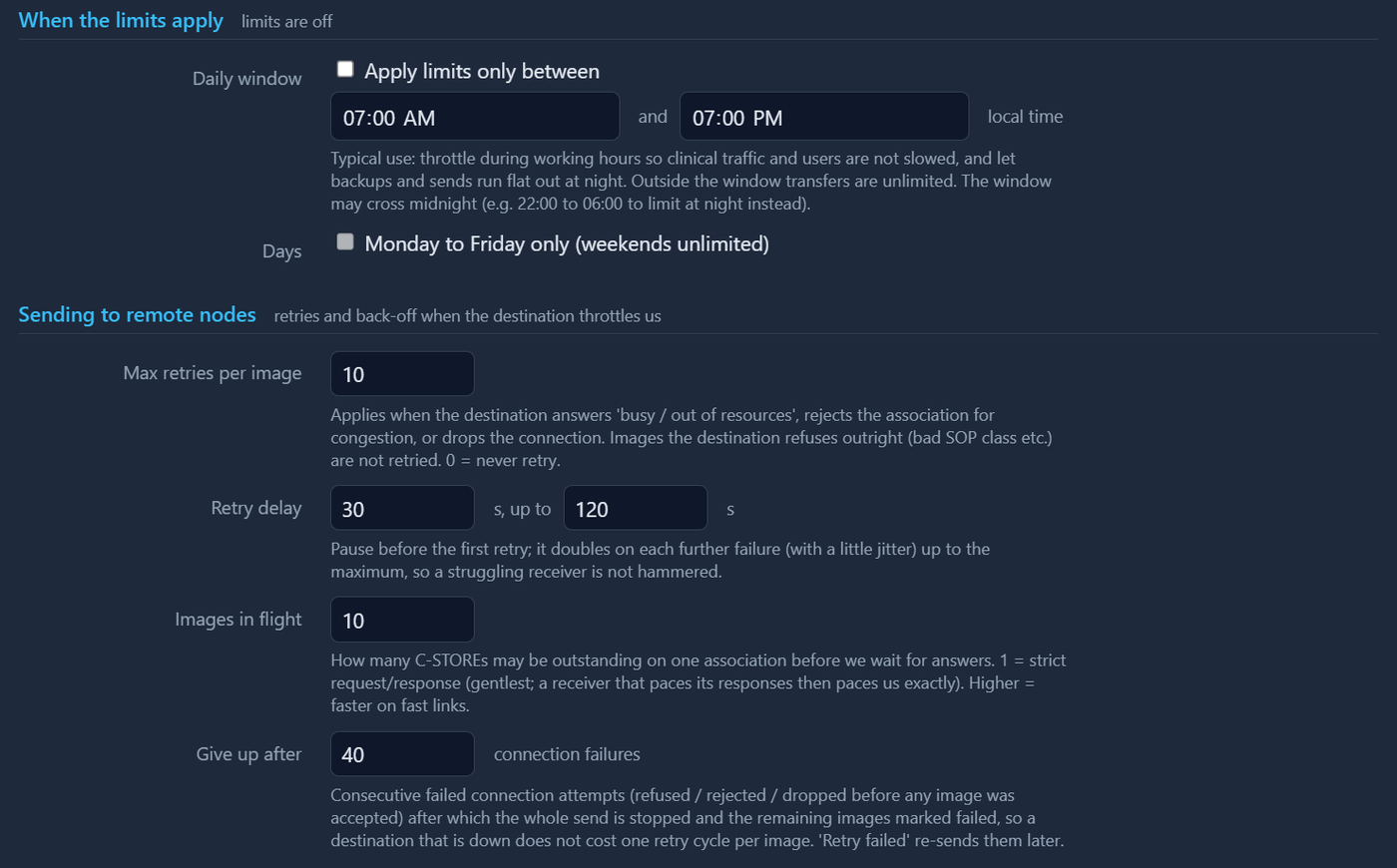
Bandwidth & sending: daily limit window and send retry settings