
Home / Documentation / Importing files without the network
Bring DICOM files in from a folder on the server, from your own PC via the agent, or through the inbox folder.
Open Import / Upload → 'Folder on the server'. Enter the path (local or UNC the service account can read), choose whether to include subfolders and whether to move or copy, then Start import.
In the console: /import
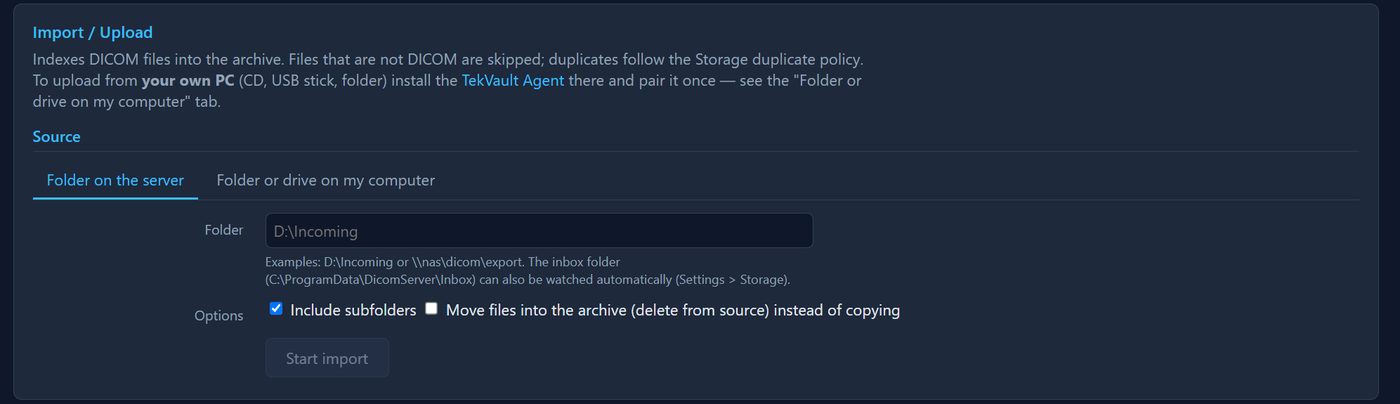
Import page, server folder tab
Install the TekVault Agent on your PC (link on the Import and Export pages) and pair it once with a code from the Export page. Then use the 'Folder or drive on my computer' tab, browse to the folder and press Import from my computer.
In the console: /import
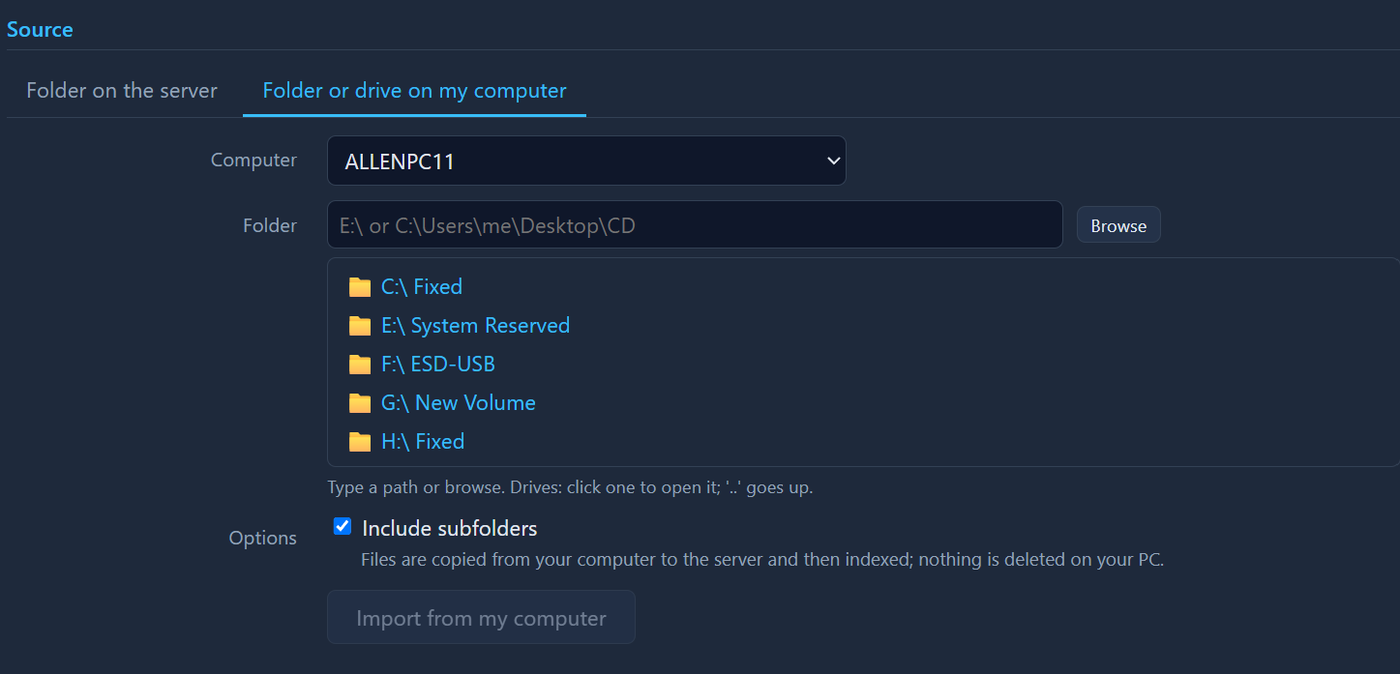
Import page, agent tab with folder browser
Administrators can enable the Inbox under Settings → Storage. Any DICOM file dropped into that folder is imported automatically and removed from the inbox.
In the console: /settings/storage
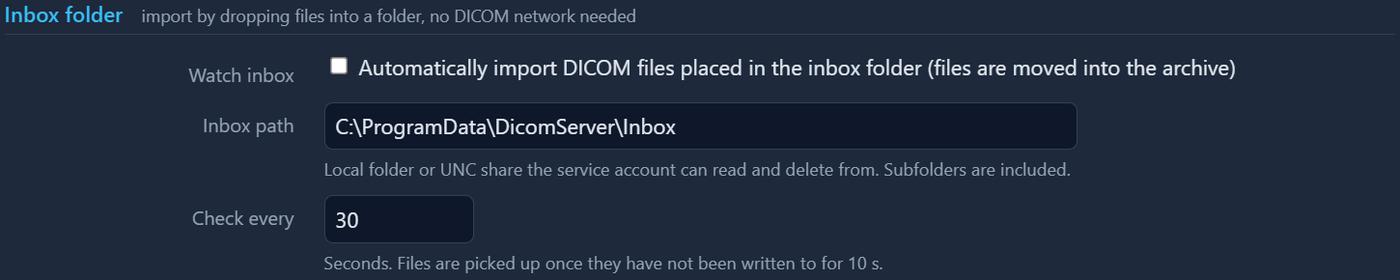
Storage settings, Inbox section
Import Jobs shows images imported, skipped (not DICOM or duplicates) and failed. Duplicates follow the policy under Settings → Storage.
In the console: /jobs

Import Jobs table